
In an era where data visualization is central to decision-making, Power BI continues to stand out as a versatile tool for turning raw data into actionable insights. Yet, beneath the sleek dashboards and colorful charts lies a challenge faced by many analysts and engineers—query performance.
When your reports lag or visuals fail to refresh quickly, the culprit often lies in DAX (Data Analysis Expressions). But what if there was a tool that could help you detect and refine inefficient DAX queries, giving your reports the responsiveness they deserve?
Let’s explore the DAX Performance Tuner MCP Server, a promising solution from Microsoft’s Fabric Toolbox that can help you fine-tune your Power BI performance—without diving blindly into the code.
Why Performance Optimization in Power BI Matters
Performance in Power BI isn’t just about speed; it directly affects user engagement, data refresh reliability, and report scalability across large organizations. Even a highly visual report loses its impact if users must wait for visuals to load or encounter timeouts.
While manual performance tuning using tools like DAX Studio and Performance Analyzer has been the go-to strategy, Microsoft has now introduced a new player: the DAX Performance Tuner MCP Server.
Introducing the DAX Performance Tuner MCP Server
Developed within the Microsoft Fabric ecosystem, the MCP Server is designed to:
- Analyze specific DAX query contexts
- Identify performance bottlenecks
- Suggest optimized query structures
- Provide performance comparison metrics before and after optimization
What makes this tool interesting is that it doesn’t rely on guesswork—it processes actual queries under realistic workloads, providing recommendations grounded in the current model and data.
Step-by-Step Walkthrough: Using MCP Server to Optimize DAX
Here’s a detail guide of using the DAX Performance Tuner MCP Server for real-world optimization:
1. Download & Set Up the Tool
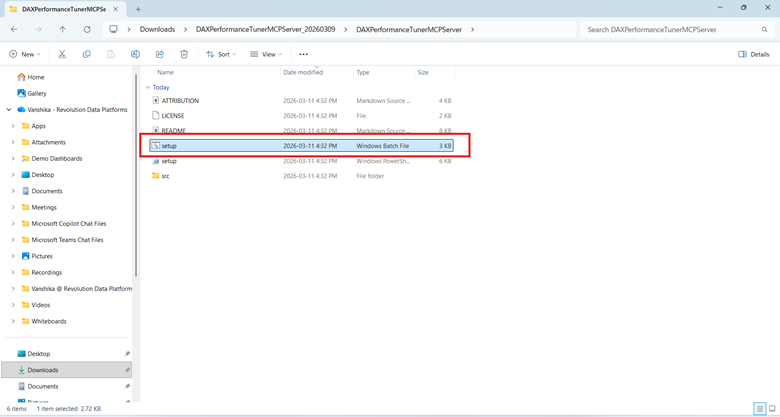
Start by downloading the latest version from Microsoft’s official Fabric Toolbox GitHub repository. Inside, you’ll find the DAXPerformanceTunerMCPServer tool among other resources.
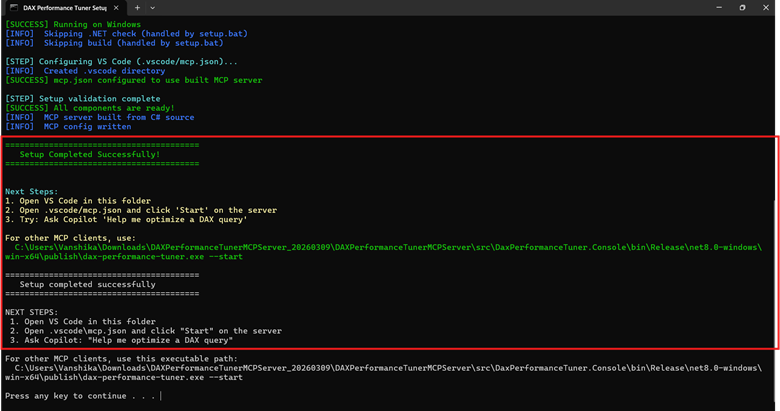
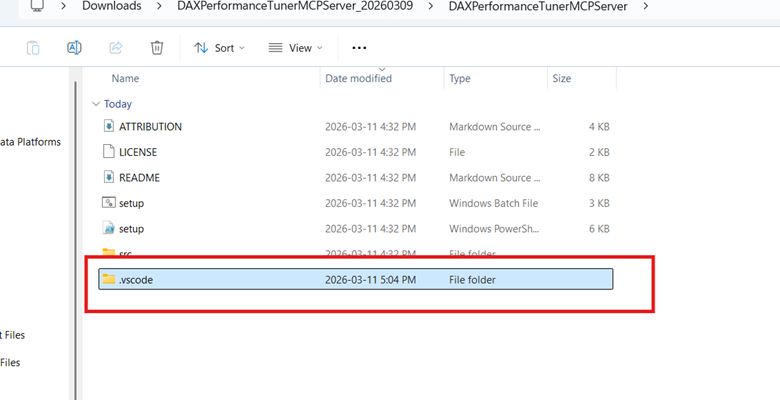
Install dependencies, run the provided setup script, and launch the server using Visual Studio Code or your preferred development environment.
2. Deploy a Test Power BI Model
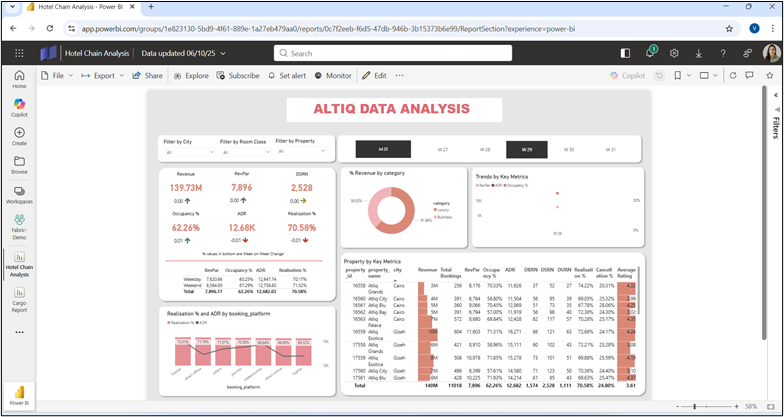
To simulate a performance scenario, deploy a Power BI report with known performance issues (e.g., high query duration, heavy visuals). For this walkthrough, the sample used was a model named Hotel Chain Analysis.
Upload this model into a dedicated workspace within your Power BI environment to isolate the optimization test.
3. Use Performance Analyzer to Detect Bottlenecks
Open the Performance Analyzer and start recording interactions. Navigate through report pages and visuals to identify which queries consume the most time.

4. Extract the DAX Query
From the analyzer panel, extract the DAX query. This will serve as the input for the MCP Server.
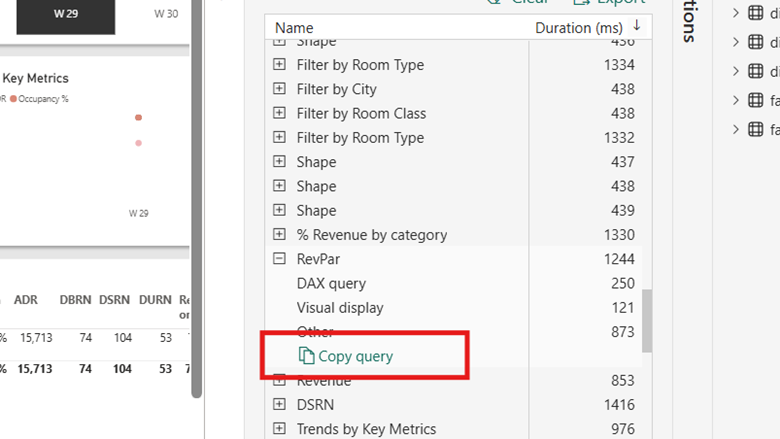
5. Feed the Query into the MCP Server
Once the query is ready, structure your prompt for analysis. The MCP Server evaluates the expression in its execution context, comparing performance statistics like Formula Engine time, Storage Engine hits, and memory consumption.
For Example:
Optimize this query
Dataset : Hotel Chain Analysis
Workspace : PBI Reports
Query : DAX Query
DEFINE
VAR __DS0FilterTable =
TREATAS({DATE(2022, 7, 1)}, ‘dim_date'[mmm yy])
VAR __DS0FilterTable2 =
FILTER(
KEEPFILTERS(VALUES(‘dim_date'[week no])).
AND(‘dim_date'[week no] IN {“W 29”}, NOT(‘dim_date'[week no] IN {“W 32”}))
)
VAR __DS0Core =
SUMMARIZECOLUMNS(
‘dim_hotels'[category],
__DS0FilterTable,
__DS0FilterTable2,
“Revenue”, ‘key_measures'[Revenue]
)
VAR __DS0BodyLimited =
TOPN(1002, __DS0Core, [Revenue], 0, ‘dim_hotels'[category], 1)
EVALUATE
__DS0BodyLimited
ORDER BY [Revenue] DESC, ‘dim_hotels'[category]